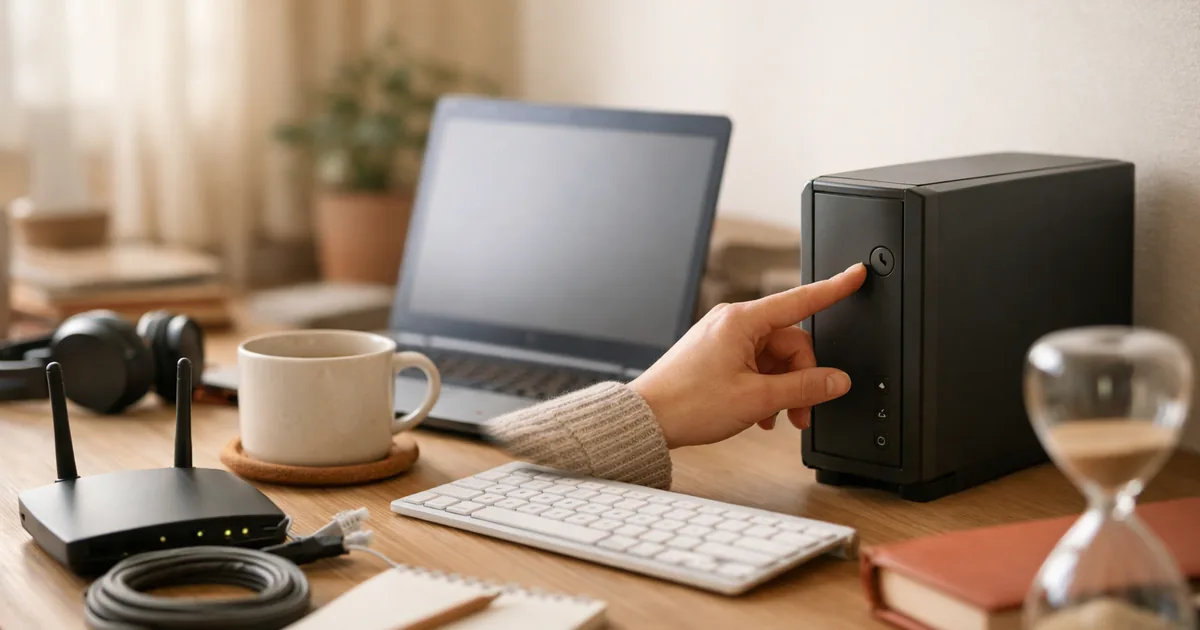
When the internet drops, almost everyone moves in the same order: refresh a few times, restart the computer, and only then go look at the router. This article answers three questions — where the money actually splits, what skipping the order costs you, and what to do first.
1. Thirty seconds decides it. Put another device on the same Wi-Fi. If that fails too, it is the line; if it works, it is your PC.
2. That check is worth 15,000 won. Call an engineer for a problem that turns out to be your PC and a customer-fault callout fee of 15,000 won applies (KT's terms).
3. Don't count on compensation. A two-hour outage pays about 917 won on a 33,000-won monthly plan. The real money is in not paying the callout fee.
Each of the three, worked through below.
Where the money splits
Two amounts actually change hands during an outage: what you are paid when the fault is on the line, and what you pay when it turns out to be yours. Both are written into the terms.
| Item | As written in the terms |
|---|---|
| When compensation applies | “Service unavailable for two consecutive hours or more, or cumulative outage exceeding 12 hours in one month” |
| The formula | {(monthly fee daily average ÷ 24) × hours unavailable} × 10 |
| Wilful default or gross negligence | “Compensation may be negotiated on the same basis even below two consecutive hours” |
| Standard service visit | 36,000 won (45,000 evenings, weekends and holidays) |
| Customer-fault callout | 15,000 won — “where the service visit is requested for reasons attributable to the customer” |
| From KT's summary of its broadband terms. Providers differ — check your own contract. | |
Put a real fee into the formula and the size of the payout becomes clear. On a 33,000-won-a-month plan the daily average is 1,100 won, or 45.83 won an hour, multiplied by ten.

| Outage | Payout on a 33,000-won plan |
|---|---|
| Two consecutive hours (the minimum qualifying) | About 917 won |
| Three hours | About 1,375 won |
| Over 12 cumulative hours in a month | About 5,500 won |
| A full day (24 hours) | About 11,000 won |
| Our calculation from the formula in the terms. Even losing a full day does not reach the 15,000-won callout fee. | |
The table says one thing plainly. Working out whether the fault is yours — and avoiding the callout fee — is worth more than chasing compensation. And that determination takes thirty seconds.
Thirty seconds — put another device on it
Microsoft's Wi-Fi troubleshooting document runs to 13 steps, and the one that costs almost nothing while telling you the most sits at number six: connect a different device to the same network.
| On the other device | So the problem is | What to do next |
|---|---|---|
| It works | Your PC | Steps 7–12 (drivers, power saving, updates, restart). Calling an engineer costs 15,000 won |
| It fails the same way | The router or the line | Step 4 (restart modem and router), then your provider |
| This one check erases half of the remaining twelve steps. It also shortens the support call — “none of my devices work” moves the problem outside your PC immediately. | ||
The router restart carries a number: Microsoft says to unplug the power cable for at least 30 seconds before plugging it back in.
What skipping the order costs
The step people reach for when frustrated is network reset, and Microsoft's note on step 13 is short and clear: “Network reset should be the last step you try.”
| Action | What you accept by doing it |
|---|---|
| Network reset (step 13) | It removes and reinstalls network adapters and returns settings to defaults. Saved Wi-Fi passwords and other things that are tedious to restore can go with it. |
| Skipping the order | The problem stays and the list of things to restore grows. |
| Calling an engineer without checking your side | If it is judged a PC problem, a 15,000-won customer-fault callout fee. |
| Opening the router yourself | A step that appears in neither document. Don't. |
Microsoft's 13 steps, in order
The order people actually use and the order in the document run almost backwards.
| # | Step | Note |
|---|---|---|
| 1 | Check the network connection status | Wi-Fi on and showing “connected” |
| 2 | Check airplane mode | Confirm it is off |
| 3 | Forget the network and reconnect | Remove it from saved networks, then rejoin |
| 4 | Restart the modem and wireless router | Unplug the power cable for at least 30 seconds |
| 5 | Adjust the Wi-Fi channel or band | Switch between 2.4 GHz and 5 GHz |
| 6 | Connect a different device to the same network | Separates a PC problem from a line problem |
| 7 | Run network commands | Reset TCP/IP from the command prompt |
| 8 | Uninstall the network adapter driver and restart | Windows reinstalls it on reboot |
| 9 | Ping the router to check the link | |
| 10 | Turn off power saving on the Wi-Fi adapter | |
| 11 | Check for Windows updates | |
| 12 | Restart the PC | The thing most people do first |
| 13 | Network reset | The document: “the last step you try” |
| On Windows 11 the document first suggests running the network troubleshooter; these 13 steps are the general procedure that follows. | ||

Why turning everything off and on works
Power-cycling the router fixes things surprisingly often, and why is rarely explained. One Apple document gives one of the reasons.
“If you're connected to a network using TCP/IP and have trouble connecting to other computers or services, your computer's IP address may be conflicting with the IP address of another device on the network.”
— Apple Support, “Resolve IP address conflicts on Mac”
A home router usually hands out addresses via DHCP. If the same address lands on two devices, one of them cannot communicate. Cutting power makes the router allocate addresses from scratch, which clears the overlap.
Apple's own order points the same way — wait for DHCP to issue a new address, quit and reopen the app you were using, sleep and wake the Mac, restart the computer, check manual settings if you use them, and on a home network power-cycle every network device. Here too, restarting the computer is fourth of six.
If the computer itself is slow rather than the connection, see this article; for phone and internet bills, cutting telecom costs. If you have to re-enter passwords, the principles are in password security. If the issue is power or display instead, go to when it won't turn on or no sound and no display.

Questions that come up
So restarting the PC is useless?
Not what this says. The document put it twelfth; it did not remove it. The point is not “it doesn't work” but “it isn't the first thing to do,” because the eleven steps before it are faster or more informative.
How do I claim outage compensation?
Under the terms it applies to two consecutive hours or over 12 cumulative hours in a month. As calculated above, though, the amounts are small — about 917 won for two hours on a 33,000-won plan. Where the provider is wilfully or grossly at fault, the terms allow negotiated compensation below two hours. Ask your provider's support line for the procedure.
Does calling an engineer always cost money?
No. Line or equipment faults are on the provider; a fault judged to be the customer's brings a 15,000-won callout fee (KT's terms; a standard visit is 36,000 won, or 45,000 outside business hours). The thirty-second check with another device is what decides which it is.
How long should the router stay off?
Microsoft says to unplug the power cable for at least 30 seconds before reconnecting it.
2.4 GHz or 5 GHz?
The document only says to try switching and does not declare either better. Trying both is the method it describes.
What we read into it
Setting the usual order beside the document's order:
| Action | What people usually do | Where Microsoft puts it |
|---|---|---|
| Restart the PC | First or second | 12th of 13 |
| Restart router and modem | After restarting the PC | 4th |
| Check another device | Rarely done | 6th |
| Network reset | Early, out of frustration | 13th — “the last step you try” |
| “What people usually do” is convention, not survey data. Only the right column comes from the document. | ||
The biggest divergence is “check another device.” The document puts it before halfway; in practice it is skipped — and that is exactly where the cost splits.
In the Microsoft document behind a slow computer, restarting also lands twelfth. Twelfth in both — though that is our count, not something either document highlights.
Sources
- Microsoft Support (tier 3, manufacturer document) — Fix Wi-Fi connection issues in Windows (checked August 2026). Source for the 13 steps and their order, “unplug the power cable for at least 30 seconds” at step 4, “connect a different device to the same network” at step 6, the PC restart at step 12, “network reset should be the last step you try” at step 13, and the network troubleshooter being suggested first on Windows 11.
- KT broadband terms summary (tier 3, provider document) — summary PDF (checked August 2026). Source for the two-consecutive-hour and 12-cumulative-hour thresholds, the compensation formula multiplying by ten, negotiated compensation for wilful default or gross negligence, the 36,000-won standard visit (45,000 outside business hours), and the 15,000-won customer-fault callout fee.
- Apple Support (tier 3, manufacturer document) — Resolve IP address conflicts on Mac (checked August 2026). Source for the quoted sentence on conflicting IP addresses, the DHCP explanation, and the six-step order ending with power-cycling every device on a home network.
- Our own calculation. The payouts on a 33,000-won plan (about 917 won for two hours, 1,375 for three, 5,500 for twelve and 11,000 for a full day) come from putting a real fee into the formula in the terms. The counts — router fourth, PC twelfth, and Apple's restart fourth of six — are also ours; neither document highlights them.
Where to check further
- Your own provider's terms — compensation thresholds and callout fees differ. The figures here follow KT's summary, so check the same items in your own provider's terms.
- Router manufacturer procedures — these differ by device. This article covers only operating system manufacturer documents.
- Exactly what a network reset removes — what is written here is the commonly known scope; the item-by-item list is on Microsoft’s Wi-Fi troubleshooting page. On a wired connection the Ethernet page is the right one — the two procedures differ.
Written as of August 2026. The 13 steps and their wording come from Microsoft Support, the IP conflict explanation from Apple Support, and the compensation and callout figures from KT's broadband terms summary; the payout amounts and the position counts are marked as ours. If you suspect a hardware fault, do not take equipment apart — go to the manufacturer or your provider.